
My old second-generation Nest is back in the living room. This time it’s sitting under the TV, cycling through family pictures and showing the messages from Home Assistant. The ring still works. Pressing the center still does something. I really like finding another use for hardware we already own.
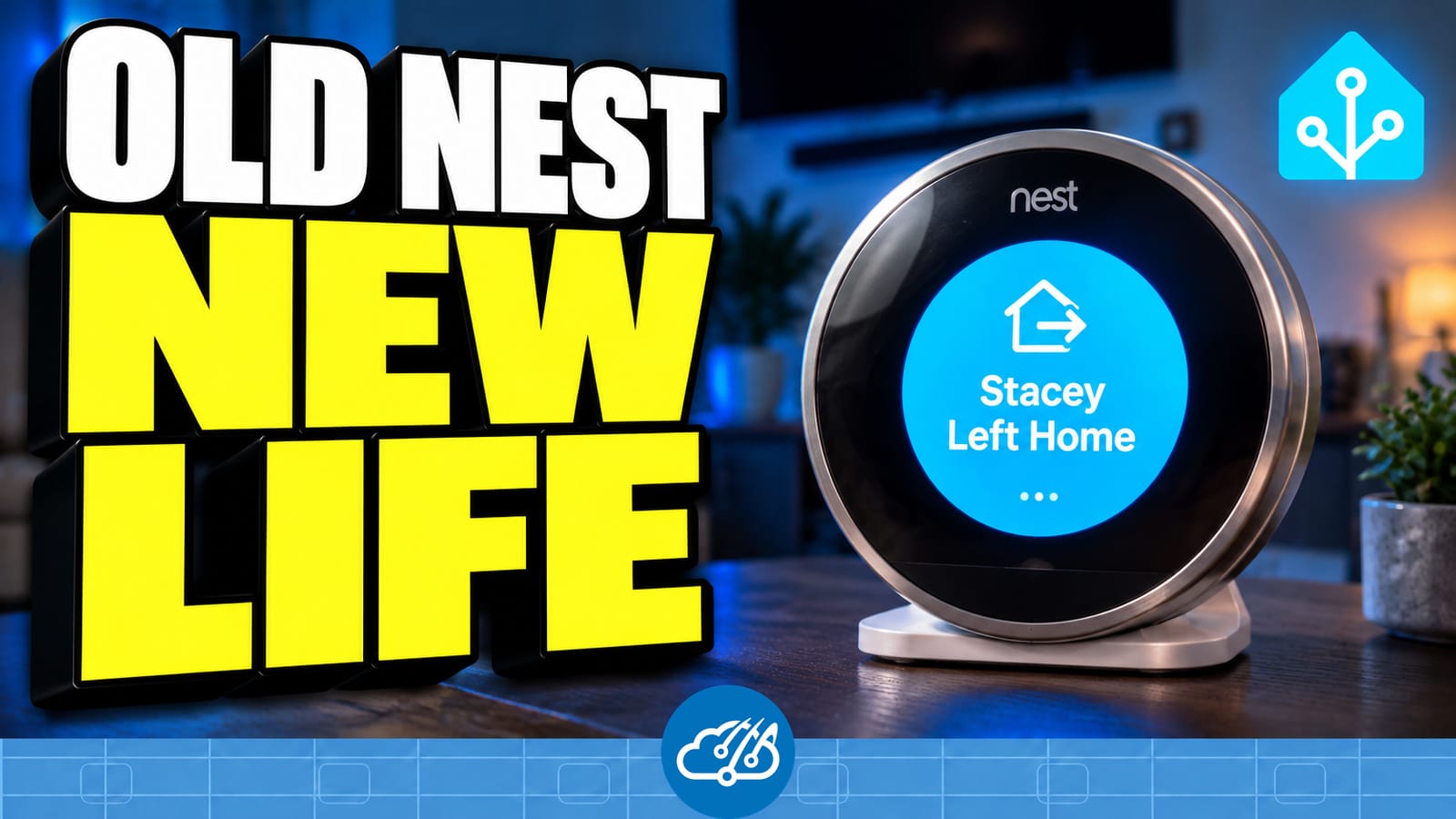
Why this Nest got another job
Google ended Nest and Google Home app support, along with software and security updates, for the first- and second-generation Nest Learning Thermostats on October 25, 2025. The official support notice explains that the thermostats can still be controlled directly and keep their local schedules.
I’ve had Nest around for a long time. Back in 2020, I wrote about turning off the air conditioning when a window stayed open. For this retired unit, I wanted to put its screen, Wi-Fi and controls to work somewhere else in the house. A small photo display with household notifications was a perfect fit for the spot under our TV.
The Raspberry Pi handled the USB flashing
We started with Cody Kociemba’s No Longer Evil project. The USB access builds on the Nest DFU work from exploiteers/GTVHacker and the OMAP loader from grant-h and ajb142. Those projects got us to the point where we could run our own software on the device.
My computer runs Windows, so I used an available Raspberry Pi for the Linux USB tooling. The original backplate, a charged Nest and a USB data cable were part of that setup. Once the software was loaded and the Nest was reachable over Wi-Fi, the Pi had finished its job.
The display now runs from a regular USB power adapter in the living room. It doesn’t need to stay attached to the Pi. If you’re starting with your own early Nest, use the community project’s current installation instructions for its firmware and model support. Our photo and notification controller is the custom layer we built after gaining access.
A photo album we can keep adding to
The gallery is what makes this something I want to leave out in the living room. Pictures change automatically, and either the outer ring or the center button advances to the next one. We crop the photos for the circular screen before sending them over; faces near the edge of a rectangular picture need a little attention.
I can send a picture from my phone to my agent, Joanna, and say add this to the Nest. She adds it to the album, and the bridge prepares the image and delivers it to the device. The video shows the original 25-photo album. Since recording, we expanded it to 45 personal photos, with up to ten marked Keep. When the album is full, the oldest unprotected photo makes room for the new one. Joanna’s avatar stays outside that limit. The gallery shuffles through every picture before starting another round.
Joanna’s current avatar stays in the rotation separately. When her Home Assistant theme changes, the picture on the Nest changes too. It’s a fun little addition between the family photos.
Two minutes to notice a notification
The Nest receives the same shared Home Assistant notification feed as the other kiosks. The larger screens rotate temporary messages along the bottom for five minutes. On this little display, a notification takes over the whole screen for two minutes, then the gallery returns.
That display window matters for quick events such as an arrival or a medicine confirmation. If I’m looking at the TV when the message arrives, I still have time to notice it. The card shouldn’t disappear just because the source event was brief. An urgent household alert can keep priority until Home Assistant clears it.
We use a large icon, a strong background color and very little text. The medicine card has a purple background and a big pill icon. Longer messages split across cards so the words remain readable from the couch. It’s the same reason I like colored notification icons on our phones: I can recognize the subject before reading every word.
Let the house decide when the screen is on
Home Assistant already knows when we’re in bed and whether the family is home. I used those existing states for the display, with the same Vacation Mode and house-sitter information we use elsewhere.
- When we’re in bed, the screen goes dark.
- When everyone is away, it goes dark too.
- During vacation, a house-sitter visit keeps the display available.
- A notification can wake the screen for its display window. Afterward, the bridge checks the house state again before returning to photos or turning it off.
The bridge handles that decision in Python, using the states Home Assistant provides. That avoids maintaining a second bedtime schedule just for a photo frame. The same idea works for other small screens: decide whether the room should have an active display, let a message interrupt when needed, then check the current state when the message finishes.
Guest Mode adds the Wi-Fi code
When Guest Mode is on, a Wi-Fi QR code joins the photo rotation. Friends can scan it to join the network. Our passphrase stays the same, so we generated the image ahead of time and reuse it. Turning Guest Mode off removes the code from the rotation.
The gallery keeps cycling around it, and a notification still takes priority. It gives the Nest another small job while people are visiting.
A round preview on the kiosk dashboard
I added the Nest alongside the other screens on our kiosk dashboard, with a round preview to match the device. Tapping it requests a fresh screenshot. We don’t need to capture every photo change just to keep that dashboard picture current.
The ten Home Assistant entities cover connectivity, screen power, the alert feed, status, uptime, the current scene, the last screenshot time, the preview image, a refresh button and a display-restart button. Lightweight health checks watch the controller and photo rotation separately from the preview. An old screenshot by itself doesn’t trigger a warning.
The dashboard now also has an album submenu with thumbnails and a Keep control for those favorites. A refresh button requests the current photo list when we need it. Nest health stays visible there, and automatic recovery keeps running quietly without sending phone alerts.
The shared notification feed and Home Assistant health handling are in my kiosk package on GitHub. The overall flow is Home Assistant to the Python bridge, then Wi-Fi to the Nest controller. The controller draws the scene and reads the physical controls. Our Fire Tablet camera kiosk uses the larger screen for a different job, but both fit into the same household automations.
Watch the Nest in the living room
The video shows the actual device, the photo rotation, the notification cards and how it fits into the full kiosk dashboard. I’m pretty happy that this old Nest has a place in the house again. Happy Automating!