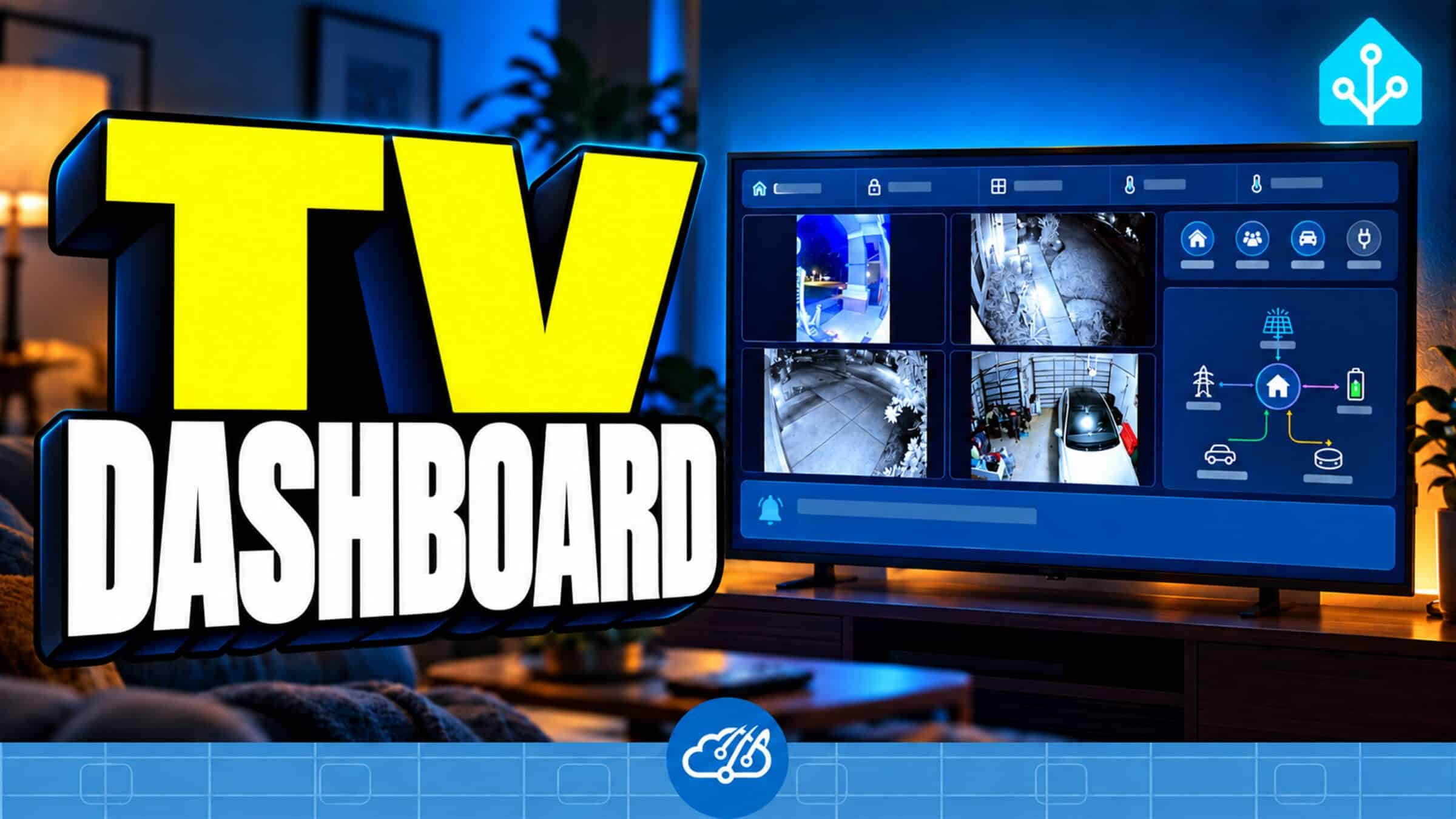
We already had a huge screen sitting in the living room. Most of the time it was either showing Roku or waiting for someone to pick up the remote. In the setup shown in the video, when the Roku screensaver kicked in, that same Samsung TV became another Home Assistant kiosk. Cameras, house status, weather, energy, water, and our household notifications are all right there.
The part I really like is that watching TV still works the way everyone expects. Hit Home on the Roku remote and we’re right back on Roku.
The Reddit project that started this
I came across this Home Assistant post on Reddit from u/naturelgass and immediately wanted to try it. The project is Haven, by natureglass: a Home Assistant powered home screen for Samsung Tizen TVs. Full credit to the original author for building it and sharing the code.
We have a Samsung Q70 in the living room, so we took Haven as the starting point and adapted the display to our house. The idea was to give the TV the same useful information as our smaller kiosks, arranged for a much larger screen.
TV buying link: Our project uses an existing Samsung 65-inch TV. View a current Samsung 65-inch TV on Amazon (affiliate link). The linked model is newer than the Q70 shown here; check its model and compatibility before buying.
A normal Smart Hub app
Haven runs as a Tizen app in Samsung Smart Hub. We didn’t root the TV. The installation involved enabling Developer Mode on the TV, setting the development computer’s address, rebooting, creating the Samsung signing certificate, and building and installing the app with the Tizen developer tools.
I had Codex use computer control to help work through those tools, the certificate wizard, the build, and the upload to the TV. Then we could keep adjusting the app and trying each version on the actual screen. That made this feel like a project we could shape around the house instead of something we had to use exactly as it arrived.
Let Home Assistant handle the handoff
We primarily watch through Roku. Home Assistant watches for the Roku screensaver to become active, checks that the TV is already on, and launches Haven. A short stability check keeps a momentary state change from triggering the switch.
Returning to TV is just the Roku Home button. On our setup, that wakes the Roku input through HDMI control and takes us back to its home screen. We tested that round trip with the actual TV and remote.
That fits nicely with our earlier Roku remote finder automation. The same remote still does its normal job; Home Assistant fills in the useful behavior around it. Our existing away-mode automation also includes the living room TV, so the dashboard follows the household presence behavior.
What made the final dashboard
We tried a big Birdseye view first, then settled on four camera pictures: front door, driveway, front lawn, and garage. The normal camera tiles refresh as snapshots every five seconds. That gives us an overview without asking the TV to decode four continuous video streams. The app also has a priority live-camera view for events such as the garage opening.
The rest is information we can read from the couch. The house-status ribbon shows the garage, front-door lock, windows, and both thermostats. Open or unsecured states turn red; active cooling turns blue. Family photos use the same home-and-away treatment as the main dashboard. A rotating panel shows upcoming weather and daily energy and water totals.
The notification band uses the same household information as our other kiosks. When we improve those notifications, the TV should benefit too. Everything is passive: there is no TV menu to click through to see the next useful thing.
Start with a screen you already own
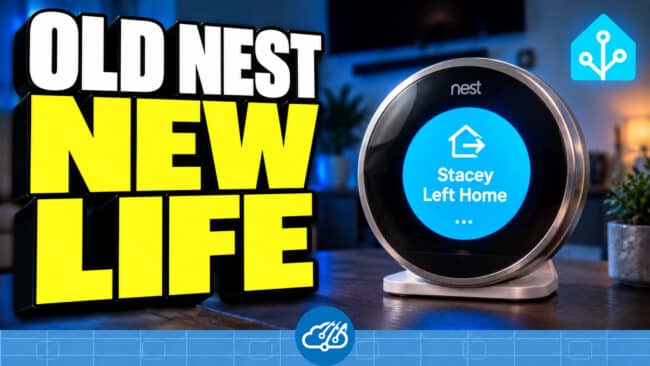
This is the same thinking behind turning an old Nest thermostat into a Home Assistant display and the Echo Show kiosks around the house. Each screen has a different amount of space and a different job, but it can still share the same household information.
For a Samsung project, start with the Haven repository. My Home Assistant projects are on GitHub as well. Keep your own connection settings, tokens, and signing certificates separate from anything you share.
What I hope people take from this is that you can look around at the devices you already own and ask what else they could do. A good open-source project gives you a starting point. AI can help you understand it, change it, and build something that fits the way your home actually works.
Watch the living room TV become a kiosk
The video shows the installation, the dashboard iterations, and the final Roku-to-kiosk handoff. Happy automating!