zLauncher remains one of my favorite Windows productivity tools, and I use it every day. Jacques Bensimon has kept building since our zLauncher v5 post. Version 6 never received its own release post, so this update covers the best additions from v6 and the new tools in v7. The current installer reports version 7.9.5.
If you are new to the utility, start with the original zLauncher introduction. Jacques designed zLauncher around a custom pop-up launcher menu, then added the Windows shortcuts, hotkeys, viewers, diagnostics, and text tools that make it useful far beyond app launching.
It has been over three years since zLauncher v5 became available on this site, so the latest update to my little weekend project is long overdue. Version 6 came and went without a post, and now we are up to Version 7. My IT colleagues and I drove many of the new features through needs we encounter in our day-to-day work. Users suggested others, and a few exist because the challenge amused me!
What zLauncher v6 Added
- Improved regional language support: Shortcut submenu item names now match the regional names Windows uses for the current UI language. Features that recognize shell folders and dialogs now work with non-English Windows interfaces.
- IPv4 subnet calculator: Calculate IPv4 networks without leaving zLauncher.
- Pinnable submenu shortcuts: The Options menu can create a shortcut to any zLauncher submenu and pin it to the Taskbar. This restores the equivalent of Explorer toolbars, which Windows 11 removed.
- Windows Settings URI picker: A new dialog lists the identifiers for Settings panels available in the installed Windows 10 or 11 build. You can copy or launch a URI, then create menu items that open a specific Settings page.
- Hotkey control and reference: Disable or re-enable a conflicting hotkey for the current session or until you change it again.
- Faster Enhanced Properties: Ctrl + Shift + ? now counts the files, directories, and bytes in a folder. It can beat Explorer by a wide margin on large folders.
- Tray icon controls: Options menu commands can show or hide all tray icons, restoring another feature Windows 11 removed.
- Elevated browsing and editing: New shell context menu items browse folders and open files as administrator. Explorer and zLauncher do not need to run elevated.
- Expanded Paste Snippet modes: Ctrl + Shift + I offers standard paste and Paste-as-Keystrokes modes, with fast or slow entry and an optional delay.
- Direct actions: Many zLauncher hotkey features can become menu items. A command line, script, or shortcut can invoke these actions too.
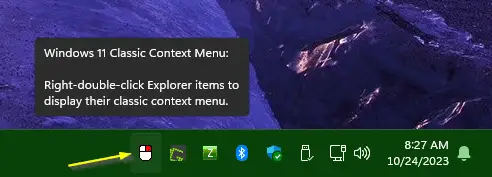
- Classic context menus: zLauncher can open Explorer’s expanded context menu without Shift + Right-Click or Windows 11’s Show more options command. Middle-Click handles this action by default. You can assign it to Right-Click or turn it off.
- Code and menu improvements: Version 6 improved icon selection and shortened the first menu build after launch.
What zLauncher v7 Adds
Search, Screenshots, and Viewers
- Universal Find: Search for files and folders beneath any root folder, often faster than Windows, or search inside an Edit or RichEdit field in any application. Both modes support regular expressions.
- PNG screenshot capture: Capture an entire display, the active window, the window beneath the mouse, a selected region, or the last captured region. The capture tool connects to the new image viewer so you can review earlier screenshots.
- Image viewer: Open selected image files, a set of text file paths, or indirect @strings that resolve to an image path.
- Text, hex, and clipboard viewers: Watch a text file change as an application writes to it, inspect a file in hex, or monitor the clipboard.
Menus and Navigation
- Control Panel submenu: Add a menu that lists the Control Panel items once found in pre-Windows 10 Start menus.
- Browser shortcut menus: Build submenus from Edge favorites or Chrome bookmarks in a specified browser profile.
- Shell folder path insertion: While typing in any window, open a menu and insert the full path to a user or public shell folder, such as Downloads. Choose an explicit path or keep expanded environment variables.
Snippets and Typing Tools
- Snippet categories: Organize snippets into categories that appear as submenus.
- Encrypted snippets: Protect the snippets file on disk with strong encryption and an unlock passphrase. This makes the feature suitable for sensitive text such as passwords.
- Hotsnips: Expand a defined abbreviation into a full snippet as you type.
- Inline calculations: Type a math expression in any window and let zLauncher replace it with the result when you enter =.
- Cross-application spell checking: Check selected text in the current window, then paste the corrected text back when needed.
- Clipboard handoff: Export the current clipboard to a specified user profile on another machine so that user can import it.
Process, File, and Window Diagnostics
- Find processes using a file: Display the processes that hold a file open, including their full executable paths.
- Process tree: Display every ancestor of a process from a Task Manager selection or a process ID.
- File attribute tools: Display a file’s full attribute set or decode a 32-bit attribute DWORD. Properties+ (Ctrl + Alt + ?) now includes attributes and security zone details.
- Timestamp converter: Convert to or from Unix Epoch and Windows FILETIME timestamps.
- Window recovery and cleanup: Move the active window to the mouse pointer, including an off-screen window, or close the active window and its matching windows.
- RGB color picker: Display the coordinates and RGB value of the pixel beneath the mouse.
- Calculated RegEx replacements: A new replacement syntax can calculate results from captured strings.
- More refinements: Version 7 also improves existing features and reduces code overhead.
A New Signed Installer
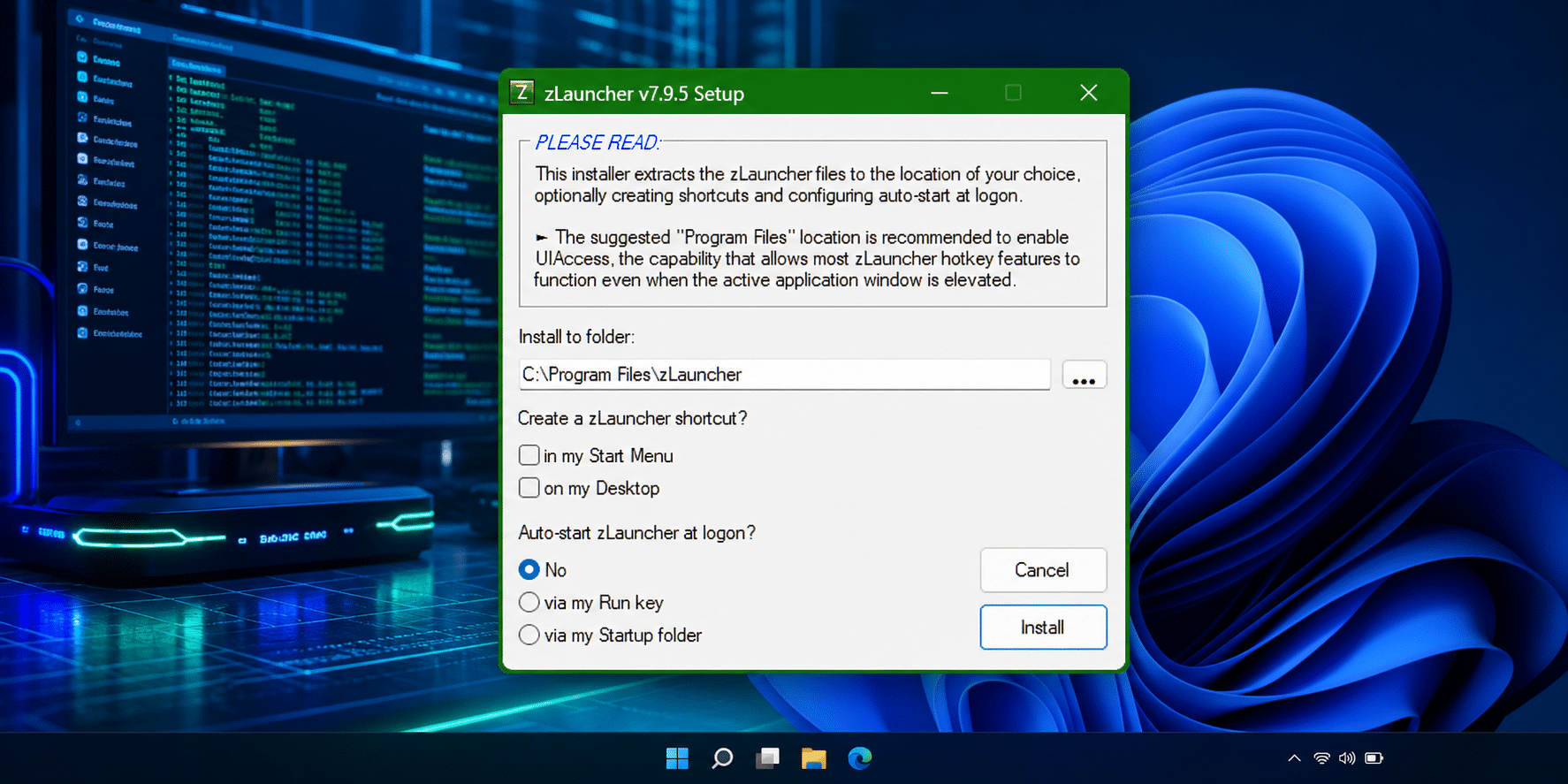
New for this version, zLauncher v7 now ships as a simple signed EXE “installer” (really a self-extracting archive if you skip the shortcut and auto-start options). Unlike the zLauncher EXEs, the installer itself is not a compressed executable and might therefore be less likely to trigger false positives from SmartScreen and some antivirus programs.
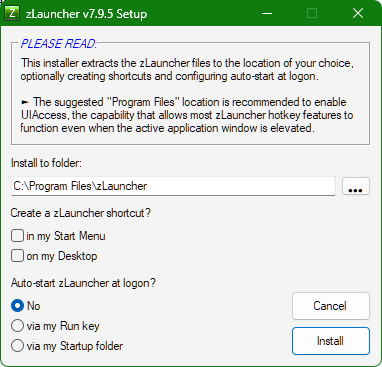
The installer includes the zLauncher CHM help file. You can also download the manual on its own if, like me, you prefer to read the instructions before hooking up a new gadget.
As always, hit me up on X/Twitter with any zLauncher issues, questions, or suggestions.
JB
Follow Jacques Bensimon on Twitter @JacqBens for more great Windows insights and tricks.