
I found something useful for our Home Assistant camera dashboard: the Frigate Events Card by saihgupr. Its timeline puts recorded footage and playback controls together in one popup. I can start with something that caught my eye, move around the recording, and look at it from another camera.
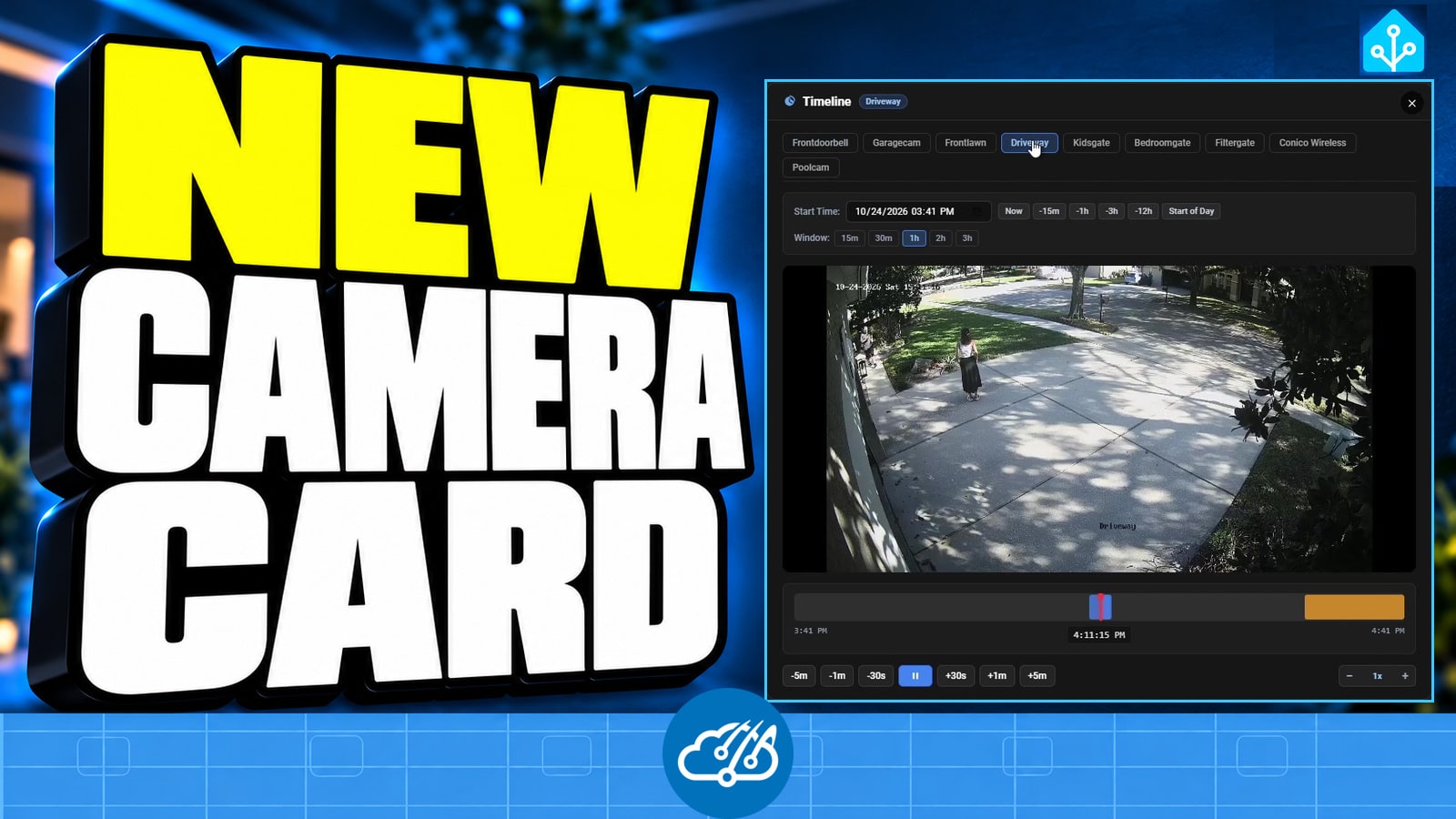
The card is a new addition to our dashboard. We’ve also made a few changes around it for browsing clips and keeping our place when switching cameras. The short video below shows our actual setup, including those refinements.
Follow the moment across cameras
A person walking past the front lawn might disappear from that view and turn up at the doorbell. That’s when I want another angle of the same event. Finding a separate driveway clip and hunting for the right second gets old pretty quickly.
In our setup, opening a thumbnail starts the timeline around that event. As I switch camera tabs, we keep the current point in the recording. I can follow the movement from the lawn to the doorbell and driveway without starting the search again. Preserving that time across cameras is one of the behaviors we’ve refined in our dashboard.
The controls make reviewing footage easier
The five-minute jumps are useful when I know roughly when something happened. Smaller jumps get me closer, and clicking the timeline lets me pick another point directly. I can change the visible time window when I need more context.
Playback speed is probably the control I’ll use most. A quiet driveway doesn’t need my full attention at normal speed. I can move through that stretch faster, then slow down when something changes.
Give live views and recorded clips their own space
Our Live Cameras page stays compact. Clicking a camera tile opens its full-screen live view, and a small set of recent thumbnails provides a quick way into recordings.
The separate Clips page is where I spend time reviewing. It shows the newest clips first, lets me choose a camera, and has Older and Latest controls. Our Recent footage button opens the latest saved recording for the selected camera. It is useful when I want to look back without choosing an event thumbnail first.
That split keeps the live page readable while giving the archive enough room for details and filtering. These page layouts and browsing controls are part of our dashboard setup; use the upstream project’s documentation for the options included in the card you install.
Start with a small card configuration
The project README covers installation through HACS and the Frigate integration requirements. Here is a small starting point using its documented timeline options. Match frigate_client_id to your integration instance.
type: custom:frigate-events-card
frigate_client_id: frigate
event_count: 8
video: true
show_timeline: true
timeline_on_click: true
timeline_default_window_hours: 1
The optional cameras list filters the card to particular Frigate camera names. Leave it out when you want all cameras. This example is a starting configuration for the upstream card; it does not install our custom archive controls or time-preservation refinements.
Before judging playback, check that Frigate still has recordings for the camera and time you selected. Retention settings determine which footage remains available. A working live stream does not tell you whether yesterday’s recording is still there. Frigate’s recording documentation explains those settings.
We already use Frigate for local package detection and garbage reminders that stop when the bins are moved. Being able to review the footage from the same dashboard makes those camera projects easier to check.
Watch the timeline on our dashboard
The video shows the camera changes, time jumps, speed controls, and clip browsing in about a minute. If you’re already using Frigate, take a look at saihgupr’s card and see where it fits in your dashboard. Happy Automating!


