

Add Custom Icons to Home Assistant iOS Notifications
Give Home Assistant iPhone alerts colored icons for packages, driveway cars, and vacuum help. Copy the nested YAML fields or use shared notification presets.
Home Assistant notifications can have a little personality. I added colored icons to the alerts Stacey and I get for packages, a car in the driveway, and a vacuum that needs help. It is a small YAML change, and it gives each alert a useful visual cue.
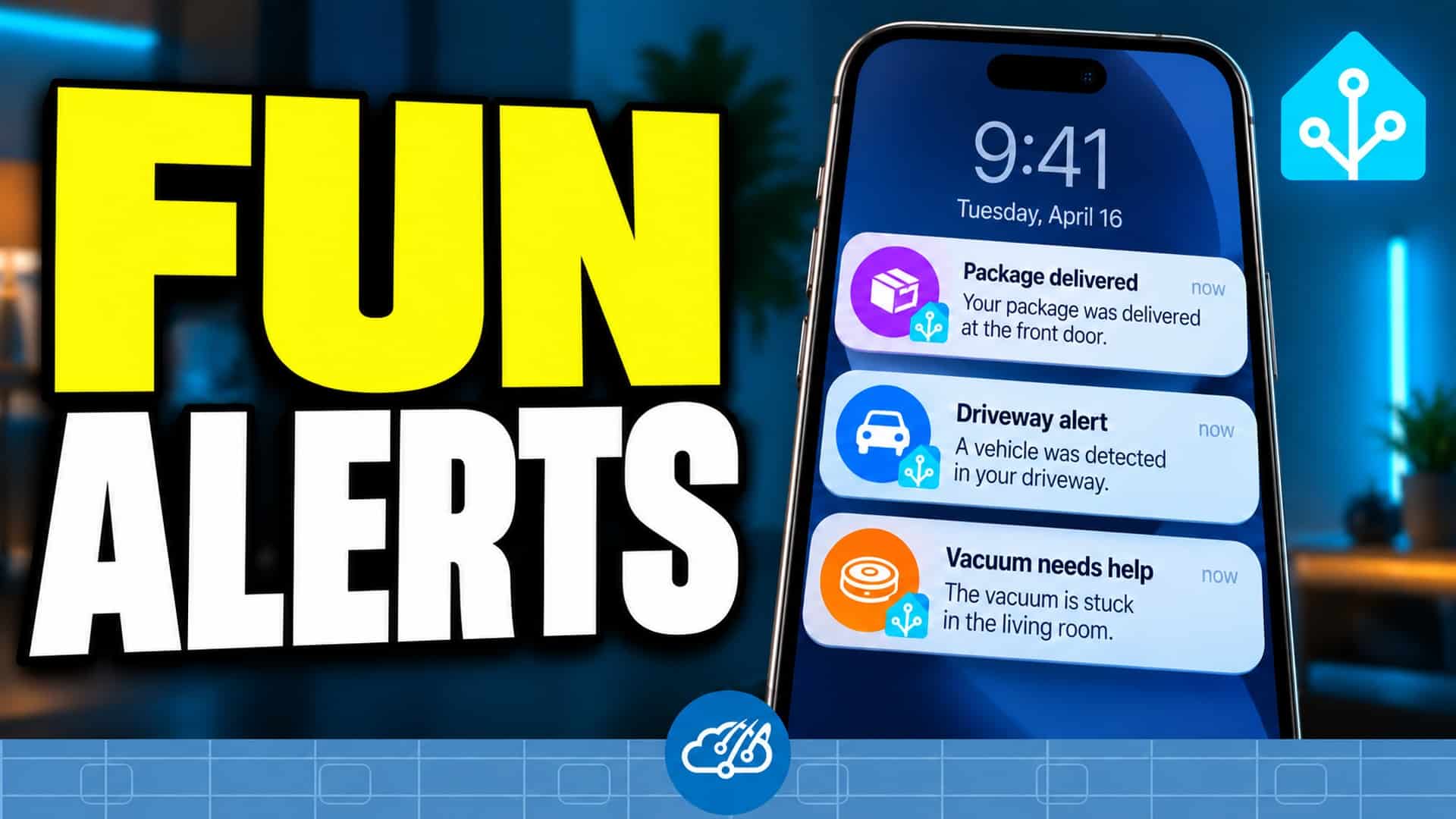
Add an icon to an iPhone notification
Start with an updated Home Assistant Companion app for iOS. Include a title: iOS uses it as the sender name for the communication notification. The official Companion documentation explains the icon and color fields.
Replace the notification action below with the mobile app target for your own iPhone. The icon fields belong inside the nested data block.
action: notify.mobile_app_your_iphone
data:
  title: "Package delivered"
  message: "Your package is at the door."
  data:
    notification_icon: "mdi:package-variant-closed-check"
    notification_icon_color: "#FFFFFF"
    color: "#6A1B9A"
notification_icon selects a Material Design Icon. color sets its background, and notification_icon_color sets the glyph color. This example uses a white package icon on purple. Hex colors should stay in quotes so YAML treats the hash as part of the value.
My package reminder already includes a camera snapshot. The sender icon adds a quick cue alongside that existing notification. For a parked car in the driveway, I picked mdi:car with blue. A vacuum asking for help gets mdi:robot-vacuum-alert with orange.
Choose the style once in a shared script
I send household alerts through a shared notification script. That keeps recipient routing and common notification options in one place. Both helper variants now assign icons to familiar notification groups, while an individual automation can still choose its own icon.
For example, a garbage reminder can use its existing group to pick up the trash-can preset:
action: script.notify_engine
data:
  title: "Garbage reminder"
  value1: "Put the bins out."
  who: "parents"
  group: "Garbage_Reminders"
An override goes in the helper call’s data, because the helper builds the nested mobile notification payload for you:
action: script.notify_engine
data:
  title: "Driveway alert"
  value1: "A car has parked."
  who: "parents"
  notification_icon: "mdi:car"
  color: "#1565C0"
These helper examples depend on my script and recipient names. Install or adapt the documented helper before copying them. A direct notify.mobile_app_... call can use the first example without that script.
A few details to keep the alerts useful
If you prefer an image, the native icon_url field accepts a public image URL or a supported relative path. It takes precedence over notification_icon. The MDI background and glyph colors apply to the generated icon, rather than recoloring your image.
In my helper, an empty notification_icon: "" opts out of the group preset. Untitled notifications and clear_notification commands also skip the helper’s icon fields. Existing recipients, tags, attachments, action buttons, and interruption levels stay in place.
Choose icons for the message category, and keep the text specific. A color does not set notification urgency. My notification snooze buttons still handle reminders that need a break, and the vacuum automations still decide when the robot runs.
The real callers are in the driveway automation, the package reminders, and the vacuum package. Borrow the icon choices and adjust the entities to your setup.
Watch the quick walkthrough
The video shows illustrative notification examples based on those automations, with the YAML fields called out on screen. Try a package icon or a chore reminder first, then pick styles for the alerts you use most.
Happy Automating!